

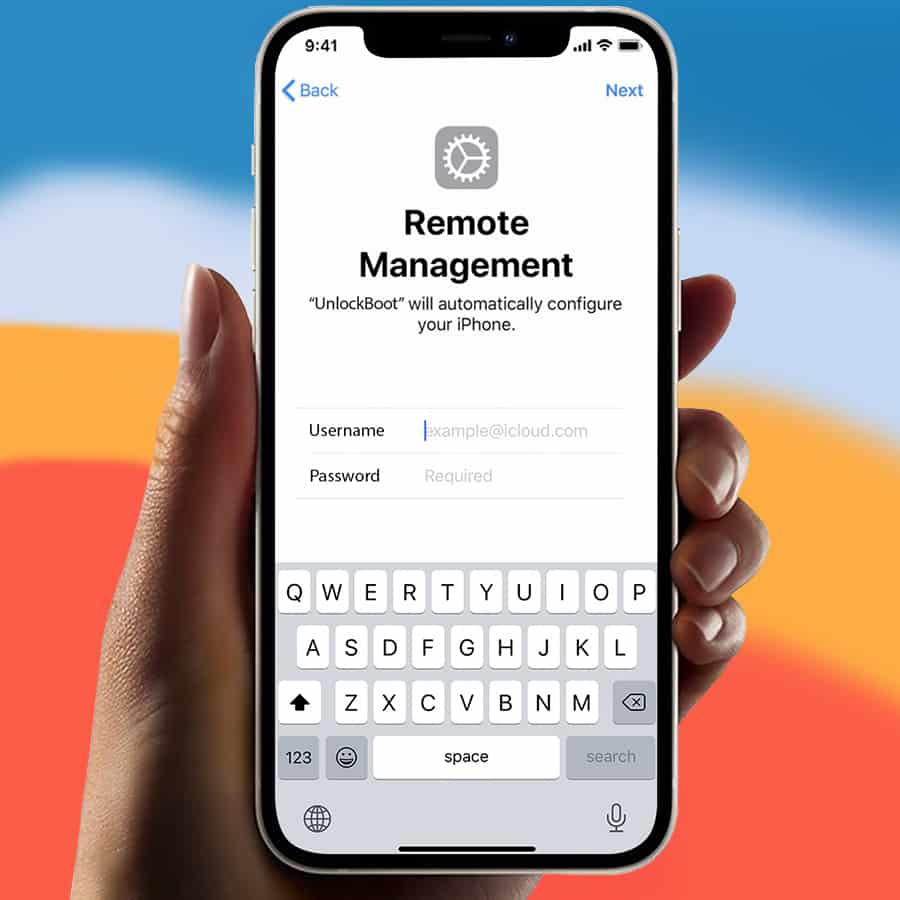
error This service will ONLY remove the MDM company lock, Please DO NOT ORDER if your phone is iCloud Locked.
MDM Bypass for ANY iPhone & iPad INSTANT
Price: From: $29.00 USD (1,595.00 MKD)
- Remote Instant MDM Bypass Service.
- Works for All iPhone and iPad Models.
- ANY iOS Version is Supported inc. iOS 27
- Receive iOS Updates & Use All Features.
Do you know what an MDM (Mobile Device Management) lock is? It is a service Apple introduced to help businesses configure all corporate Apple devices instantly using administrator accounts. This service allows both small firms and large corporations to monitor and track all corporate iPhones and iPads remotely.
Supported models: iPhone 18 Pro Max, 18 Pro, iPhone Duo, 17 Pro Max, 17 Pro, 17 Air, 17, 16 Pro Max, 16 Pro, 16 Plus, 16, 16e, 15 Pro Max, 15 Pro, 15 Plus, 15, 14 Pro Max, 14 Pro, 14 Plus, 14, SE (3rd gen), 13 Pro Max, 13 Pro, 13 mini, 13, 12 Pro Max, 12 Pro, 12 mini, 12, SE (2nd gen), 11 Pro Max, 11 Pro, 11, XS Max, XS, XR, X, 8 Plus, 8, 7 Plus, 7, SE (1st gen), 6S Plus, 6S, 6 Plus, 6, 5S, 5C, 5, 4S, 4, 3GS, 3G, iPad Pro M4, M3, Pro 6, Pro 5, Pro 4, Pro 3, Pro 2, Pro 1, Air M3, Air M2, Air 5, Air 4, Air 3, Air 2, Air 1, mini 7, mini 6, mini 5, mini 4, mini 3, mini 2, mini 1, 9, 8, 7, 6, 5, 4, 3, 2, iPad 1 & iPod Touch all variants.
The MDM service gives administrators complete control over every corporate iPhone and iPad enrolled in MDM. The MDM profile allows the administrator to remotely install or remove apps, erase files, lock the device, and perform many other actions on the iOS device.
Often, a former employee forgets to remove the corporate device from the MDM and stays enrolled. If you are not comfortable with someone accessing your data and files on your enrolled iPhone remotely, you can bypass or remove the iPhone MDM instantly. You can also remove it from your iPad running any iOS version, including iOS 27, 26, 18, 17, 16, 15, 14.8, 14.7, iOS 14, and older versions. We offer two solutions that can help you remove the MDM profile from your Apple device.
How to Bypass MDM Activation Screen & Remove iPhone MDM Profile (Works on iPad Too)
At UnlockBoot we offer services that help you immediately bypass or remove the Apple Mobile Device Management (MDM) configuration profile from your iPad and/or iPhone.
All iOS versions are supported, including the recent release of iOS 26.
Many businesses, including SMEs, educational institutes, and large corporations, control their iOS devices (both iPhone and iPad) through an Apple MDM profile. The technicians at UnlockBoot help customers remotely delete any MDM profile from MDM-locked Apple devices running any version of iOS using a user-friendly tool. Here are the steps to start the MDM bypass process:
Step 1: Find the IMEI number of the device (tap the (i) icon in the bottom right corner).
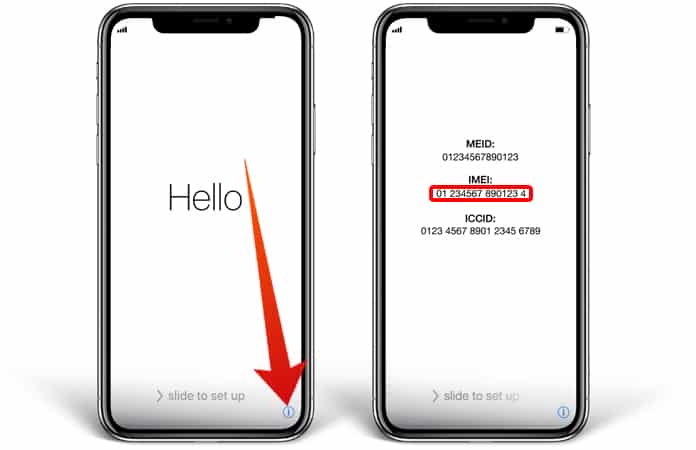
Step 2: Enter the IMEI in the IMEI field and place an order.
Step 3: You will receive an email with instructions on how to connect with our technician.
Step 4: Download and open the Windows version of the USB Redirector tool to connect with the technician.
Step 5: Enter the technician address and click Connect, then connect the phone you want to fix (the device must be on the “Remote Management” screen).
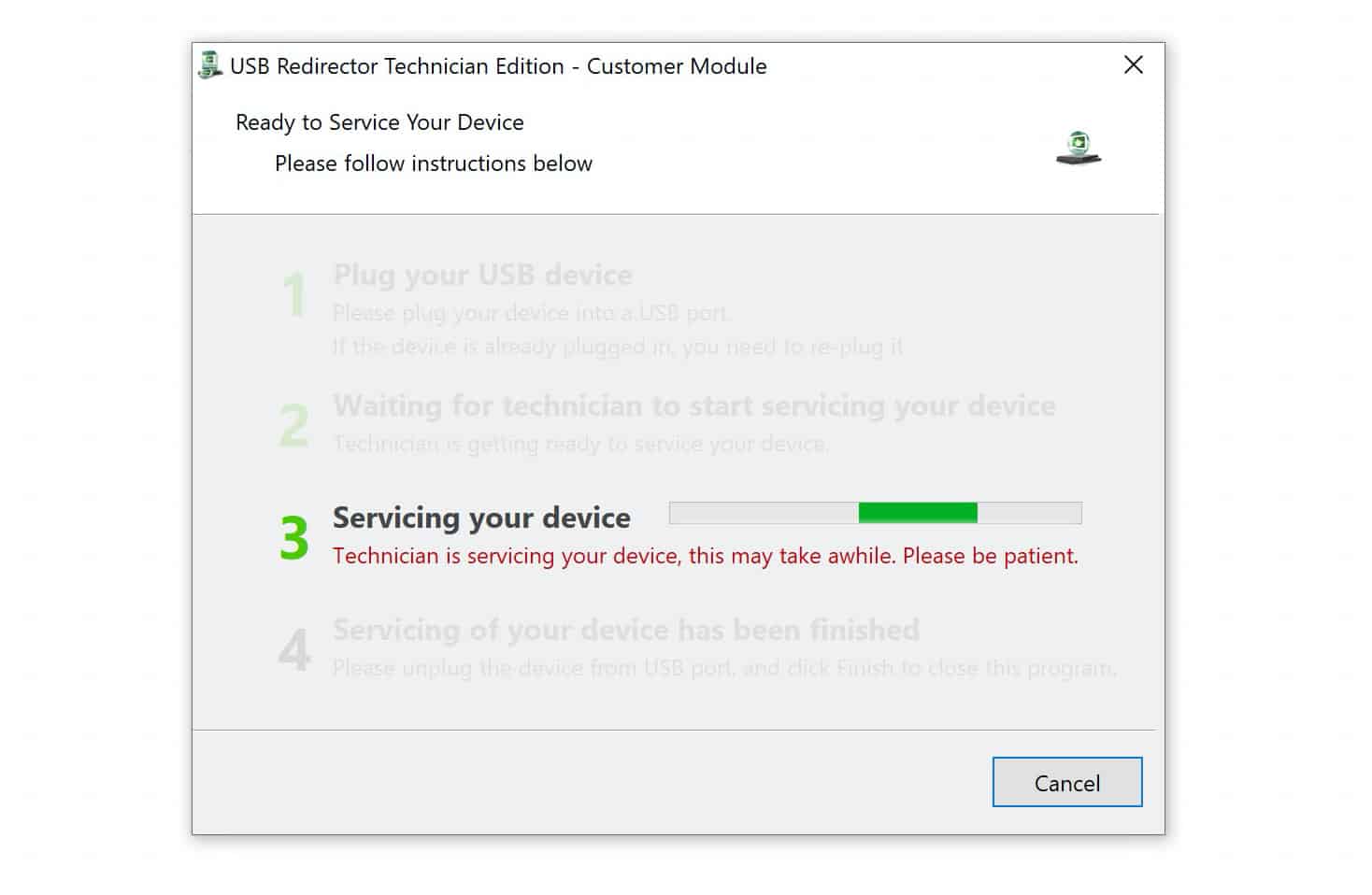
Step 6: Our technician will start servicing the device and complete the process in 5–10 minutes.
After this you can disconnect the device and use every feature (App Store, FaceTime, iMessage, iCloud, etc.) just like a normal phone.
Top benefits of using our iPad & iPhone MDM Removal Service:
- Remove any iOS restrictions from iPhone and iPad by bypassing MDM from the device.
- Delete the MDM configuration profile from all iOS devices (iPhone and iPad) remotely via USB.
- During iOS device activation, the tool can bypass the MDM authentication screen.
- You don’t need to enter any username, login, or password.
- Solve the problem of being unable to download the Remote Management Configuration.
- Receive OTA updates and update the device normally Over the Air.
Once you use the MDM Removal service and remove the Remote Management Profile, you can use all the features the device has to offer without any limitations.
The MDM Removal service is easy to use — you can remove the MDM lock with just a few simple steps. Download the software, run it, and within a few minutes the corporate configuration profile will be removed.
What are you waiting for? Remove the MDM profile now!
How to Check if My iOS Device is MDM Locked?
Has the company given you a corporate iPhone and you want to know if the device is under supervision with an MDM lock? If the iPhone or iPad is not activated, you will be unable to complete the steps that require a login and password during activation. The following messages on the display screen indicate a non-activated MDM-locked device:
- Company Name: *Company Name* will auto-configure your iOS device.
- Need to Enter Your Credentials: To authenticate the device you need to enter your credentials.
- This is a Corporate iOS device: For an unauthorized employee or contractor, please contact or provide the serial number of the device.
- Remote Management: The remote management function allows the administrator of *company name* to set up email and network accounts. The administrator can install and configure apps and manage the iPhone’s settings.
- Remote Management: Remote Management enables the administrator to manage this iPhone remotely.
- Previous Failure Authentication: Previous failure authentication failed for user corpus.
- Settings Restriction
Please note that this is a semi-permanent solution. You can update the device normally — it will not re-lock. However, a factory reset and full iTunes/DFU restore is not allowed. We recommend creating a fresh iTunes backup after we finish servicing. If you factory reset the phone by mistake, you can restore from that “golden” backup and the device will remain fixed. If you re-lock the phone by mistake, we will fix it again for free.
Go to Settings → General → About iPhone to find the details and information regarding the MDM profile, including descriptions, apps, and any restrictions.
If you see any of these messages on your iOS device, it means the device was registered in MDM using the Apple DEP (Device Enrollment Program). By using our MDM Removal Service you can easily disable MDM enrollment on any iPhone and iPad. It will help you bypass MDM control and delete the MDM configuration profile of a locked iOS device.
Note: This is NOT used to remove iCloud. It can only remove MDM (Mobile Device Management) Lock under the authority of businesses, schools, and large corporations.
1 review for MDM Bypass for ANY iPhone & iPad INSTANT
Add a review
You must be logged in to post a review.
Related products







wil.romar –
Thanks unlockboot for fixing my iPhone 8. It worked thanks again 100% trusted service A+++